
Redmi Note 12 Pro 5G is equipped with a MediaTek Dimensity 1080 processor, making this smartphone one of the best Redmi Note series devices. Users express their satisfaction with the performance and camera capabilities of this device. However, the operating system of a smartphone is also very important for users. Redmi Note 12 Pro 5G was launched with MIUI 14 based on Android 12, and now it will start receiving Android 13 update in EEA and India. * Firmware Detail: Region: China Branch: Stable Type: Fastboot OS: 13 Size: 6.7 GB URL: Download * MIUI 14 changelog: Highlights MIUI takes up less storage space now and keeps being swift and responsive over much more extended periods. Improved system architecture comprehensively boosts the performance of both pre-installed and third-party apps while saving power. Attention to detail redefines personalization and brings it to a new level. More than 30 scenes now support end-to-end privacy with no data stored in the cloud a...

Samsung has started rolling out the Android 11-based One UI 3.1 update to the Galaxy A70s in India. The new update, which has firmware version A707FDDU3CUC6, also brings along the March 2021 security patch to the phone. The software update has a download size of over 2GB, so we advise you to use a Wi-Fi network to download it.
The SM-A707F variant of the Galaxy A70s is receiving the new update in the form of software version A707FDDU3CUC6. Apart from all the Android 11-specific goodies, the update also brings the March 2021 security patches.
What's New :

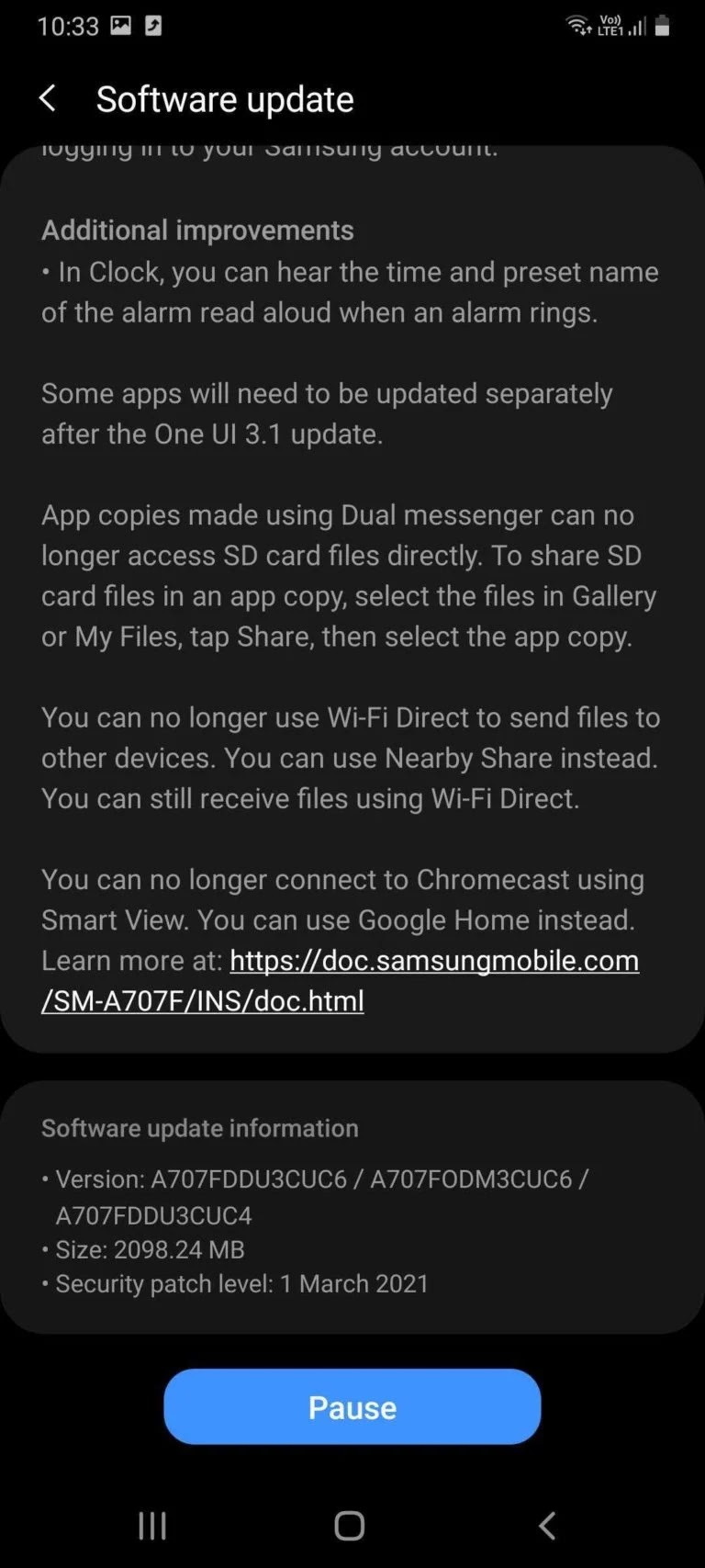
The new update brings most Android 11 goodies such as chat bubbles, one-time permissions, auto permissions reset, conversations section in the notifications area, a dedicated media playback widget in the quick settings panel, and easier smart home device controls. Obviously, the new update also includes One UI 3.1 features such as a new UI design, more customization options for Dynamic Lock screen and AoD, more lock screen widgets, video backgrounds for the call screen, improved versions of stock apps, more controls in Bixby Routines, and Digital Wellbeing now includes both personal and work profiles.
The update also includes the ability to remove GPS location data from images while sharing them, Google Home-compatible smart device controls, Samsung Free replacing Samsung Daily, improved Gallery and Samsung Keyboard, improvements to multi-window, and better accessibility features. Samsung is also claiming improved camera and system performance.
How to update :
Download A707FDDU3CUC6 Firmware
Extract the firmware file you just downloaded. You should get 5 files:
AP (System &Recovery)
BL (Bootloader)
CP (Modem / Radio)
CSC_*** (Country / Region / Operator)
HOME_CSC_*** (Country / Region / Operator)
Add each file to its respective field in Odin v3.14.4. Use CSC_*** if you want to do a clean flash or HOME_CSC_*** if you want to keep your apps and data.
Reboot your phone in Download / Odin mode (make sure your device is off) with the following button combo: POWER + VOLUME DOWN + BIXBY
Other options in case first option did not work or isn't possible.
Option 2 VOLUME DOWN + VOLUME UP then USB cable
Option 3 POWER + VOLUME DOWN + VOLUME UP
Option 4 POWER + VOLUME DOWN + HOME BUTTON
Option 5 (Note9) USB cable + VOLUME DOWN + BIXBY
Option 6 (Note10) POWER + VOLUME UP
Once in download mode, connect your phone to the PC, preferably using the original USB cable you got with your phone. Odin should detect your device and a BLUE box will show up with the COM port number. (Be sure, the SAMSUNG-drivers are installed on your PC!)
Do NOT tick any extra boxes. The only options to be ticked are F.Reset Time and Auto-Reboot.
Click the start button, wait for Odin to say 'PASS' in a GREEN box. Once the flash is complete, your phone will reboot, and you can disconnect your phone from the PC.
That it 😊
Comments
Post a Comment